
NITComply NDIS attendance software lets support workers clock in and out of shifts, helps managers check timesheets against the roster, and lets staff accept open shifts.
Many providers still track shift times with paper sheets, texts and spreadsheets. As a result, it is easy to miss late starts, missed clock-ins and travel until pay or invoicing is due. Our NDIS attendance software keeps attendance in one place. That way, managers can see what was rostered, what actually happened and what still needs approval.
For guidance on NDIS provider obligations, visit the NDIS Quality and Safeguards Commission.
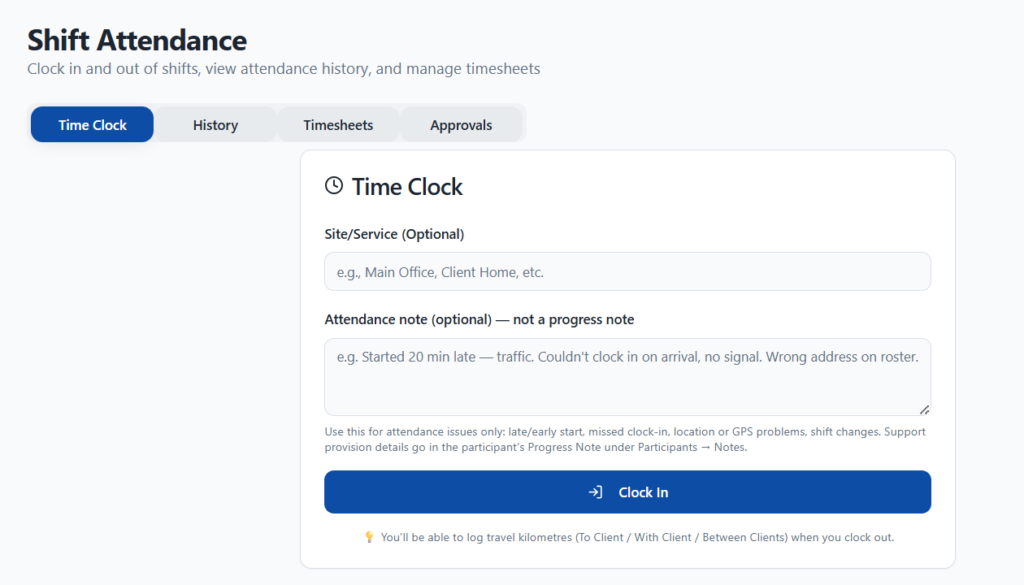
Staff clock in and out of shifts and can add an attendance note.
Choose whether clocking in from outside the location gives a warning or blocks the clock-in.
Timesheets show rostered hours, actual hours and the variance for each staff member.
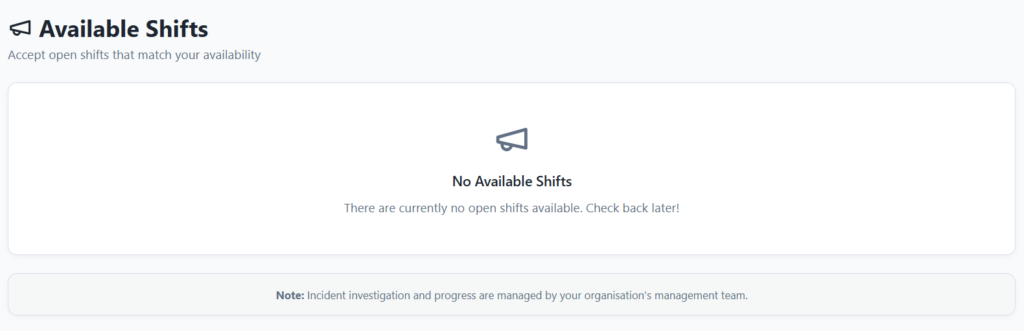
Staff can accept open shifts that match their availability.
The Time Clock lets support workers clock in and out of their shifts. They can pick the site or service and add an attendance note. For example, they can note a late start or a GPS problem. NITComply keeps attendance notes separate from progress notes. When they clock out, staff can also log travel kilometres to a client, with a client or between clients. In addition, you can turn on geofencing and choose whether it warns or blocks.
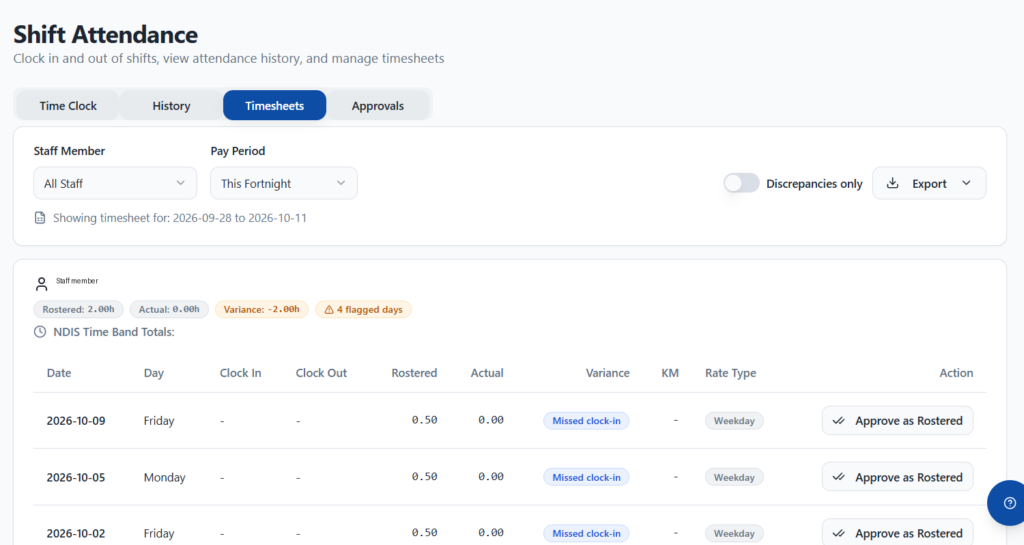
The Timesheets tab shows each staff member’s rostered hours, actual hours and variance for the pay period. It also flags missed clock-ins and days that need a closer look. You can filter by staff member, show discrepancies only and export the timesheet. Meanwhile, the History tab keeps a record of past attendance, and NITComply flags shifts over your overtime threshold.
The Available Shifts page lists open shifts, so staff can accept the ones that match their availability. As a result, managers spend less time calling around to fill a shift.
You can require manager approval before a completed shift becomes final. Managers can then use approved shifts for batch invoicing from the Approvals page. In addition, email reminders and alerts help staff and managers keep attendance up to date.
First, staff accept an open shift or work their rostered shift.
Then they clock in and out, and log any travel kilometres.
Next, managers compare rostered and actual hours and check flagged days.
Finally, managers approve shifts, and then batch invoice them.
Yes. With geofencing turned on, you choose whether clocking in outside the location shows a warning or blocks the clock-in.
No. Attendance notes are for attendance issues only. Support details go in the participant's progress notes.
Yes. When they clock out, staff can log kilometres to a client, with a client or between clients.
When approval is required, managers can use approved shifts to create invoices in bulk from the Approvals page.
Book a demo and we'll show you how NITComply attendance, timesheets and available shifts would work for your team.