
In short, NITComply NDIS rostering software helps you plan shifts for staff and participants, see who is available and turn delivered shifts into invoices.
Rostering support workers across many participants and locations takes time. However, spreadsheets and group chats make it easy to miss a shift or double-book a worker. As a result, participants can miss out on support. For this reason, our NDIS rostering software keeps every shift in one calendar. That way, your team can see who is working, where and for whom. In short, a clear roster helps you deliver the safe, reliable supports the NDIS Quality and Safeguards Commission expects.
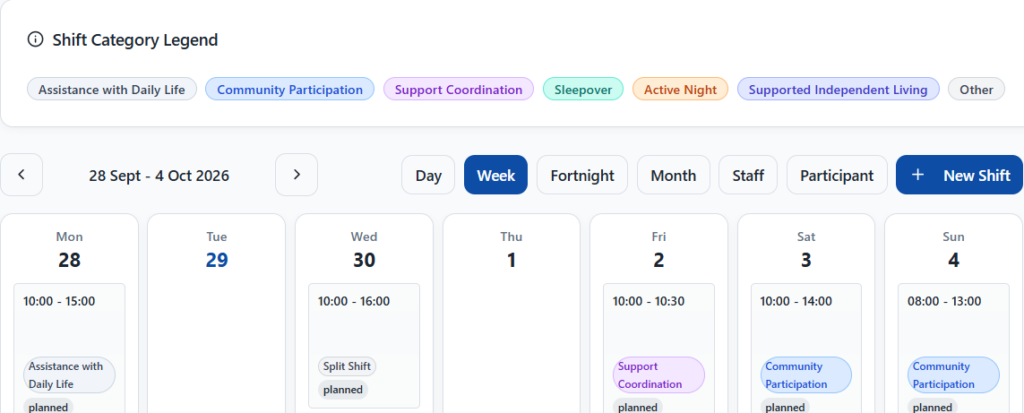
For example, switch between day, week, fortnight and month, or view one staff member or participant.
In addition, each shift shows its support category, such as Sleepover or Community Participation.
At the same time, the staff availability list sits next to the roster.
Also, you can generate invoices straight from your shifts with NDIS invoicing.
The Scheduler shows your roster by day, week, fortnight or month. In addition, the Staff view shows each worker’s week, and the Participant view shows one participant’s roster and assigned staff. You can also filter the roster by location. Meanwhile, a colour legend marks each shift category, such as Assistance with Daily Life, Support Coordination, Sleepover, Active Night and Supported Independent Living.
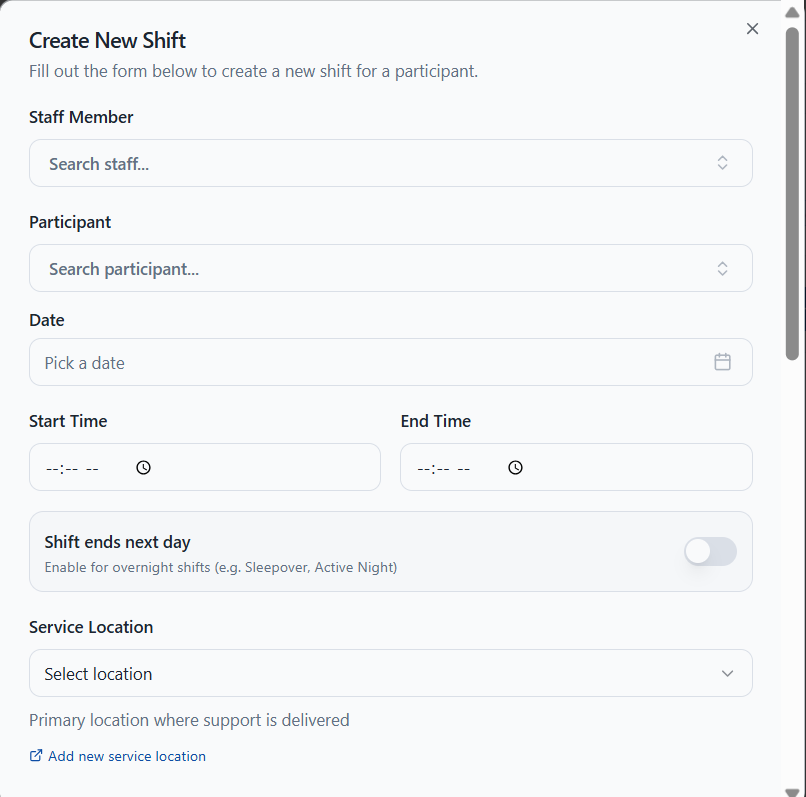
To create a shift, pick the staff member, the participant, the date and the start and end times. Next, choose the service location and add location notes, such as where to meet. Also, for overnight support, turn on the switch for shifts that end the next day. Finally, set the shift category and a status, such as Planned.
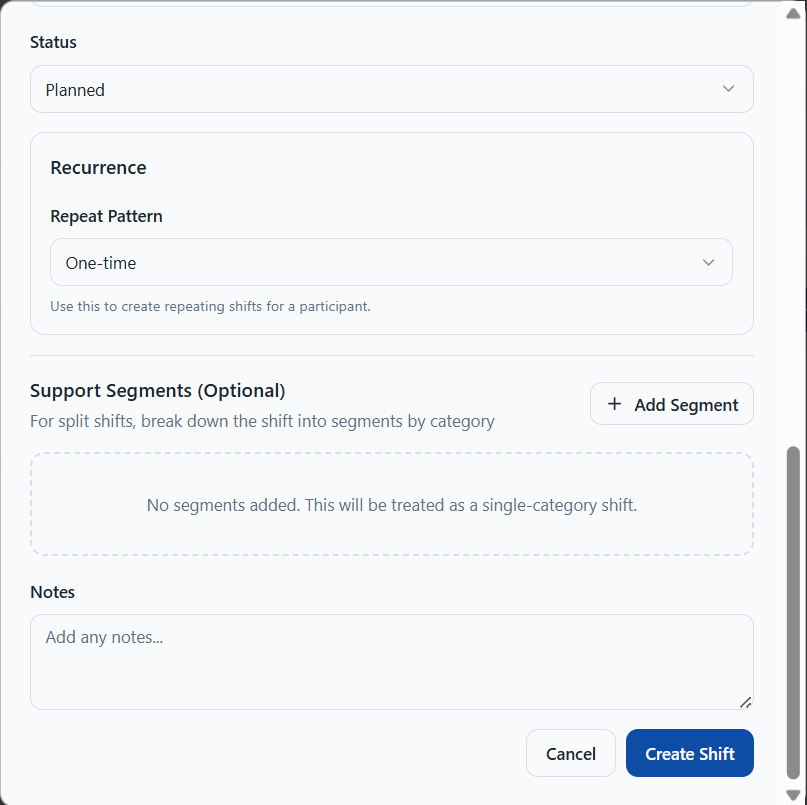
For regular support, set a repeat pattern so NITComply creates repeating shifts for a participant. Similarly, for split shifts, add support segments to break one shift into parts by category. Otherwise, NITComply treats the shift as a single-category shift. You can also add notes for the worker. Then, on the day, staff clock in and out with NDIS attendance tracking.
First, add your service locations and assign staff to them.
Then choose the worker, participant, time and category.
Next, review the week and staff availability.
Finally, generate invoices from the delivered shifts.
Yes. First, set a repeat pattern when you create the shift, so it repeats for the participant.
Yes. A switch covers shifts that end the next day, and also support segments split a shift by category.
Yes. The Participant view shows that participant's weekly roster and assigned staff.
Book a demo and we'll show you how NITComply rostering would work for your team.